NEW - VISUAL UPDATE

Cocon gets a fresh, more intuitive look

A redesigned main screen with simpler navigation, context-driven buttons and a consistent layout, so your daily work in Cocon is faster and more pleasant.

WHY THIS UPDATE

The same Cocon, easier to use

We’ve refreshed Cocon’s graphical interface with a single goal: to make Cocon more intuitive and support your daily work more efficiently. Everything you’re used to remains available, just organised more clearly and easier to find.

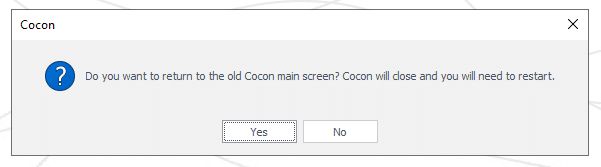
Good to know: the visual update only affects Cocon’s main screen. The geography and many sub-screens are unchanged for now. You switch between the old and new interface using the toggle at the top right; Cocon then restarts. This update is the first step in a gradual modernisation of Cocon.

AT A GLANCE

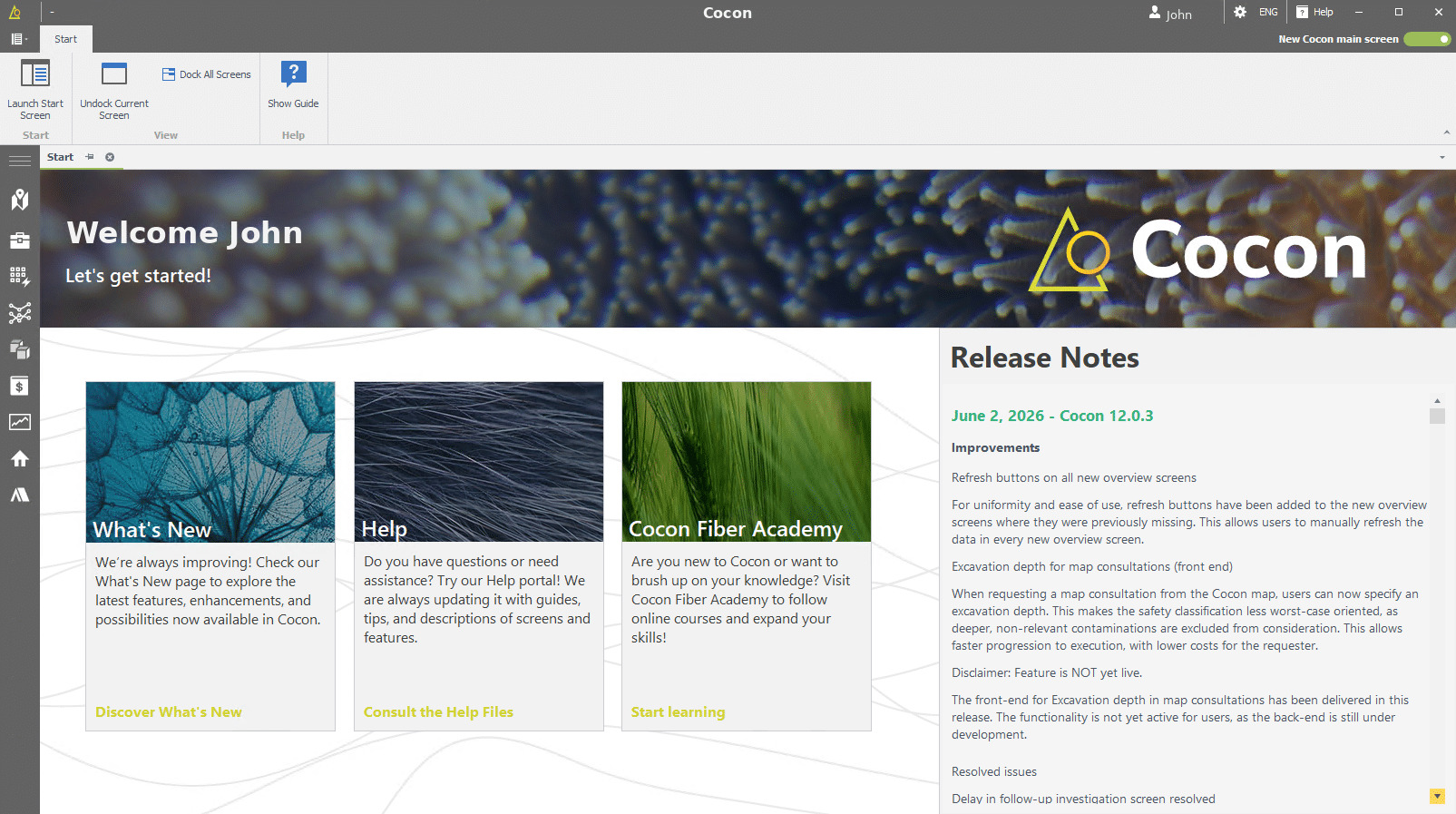
The new main screen

WHAT'S NEW

Four improvements you'll notice right away

1. The main menu

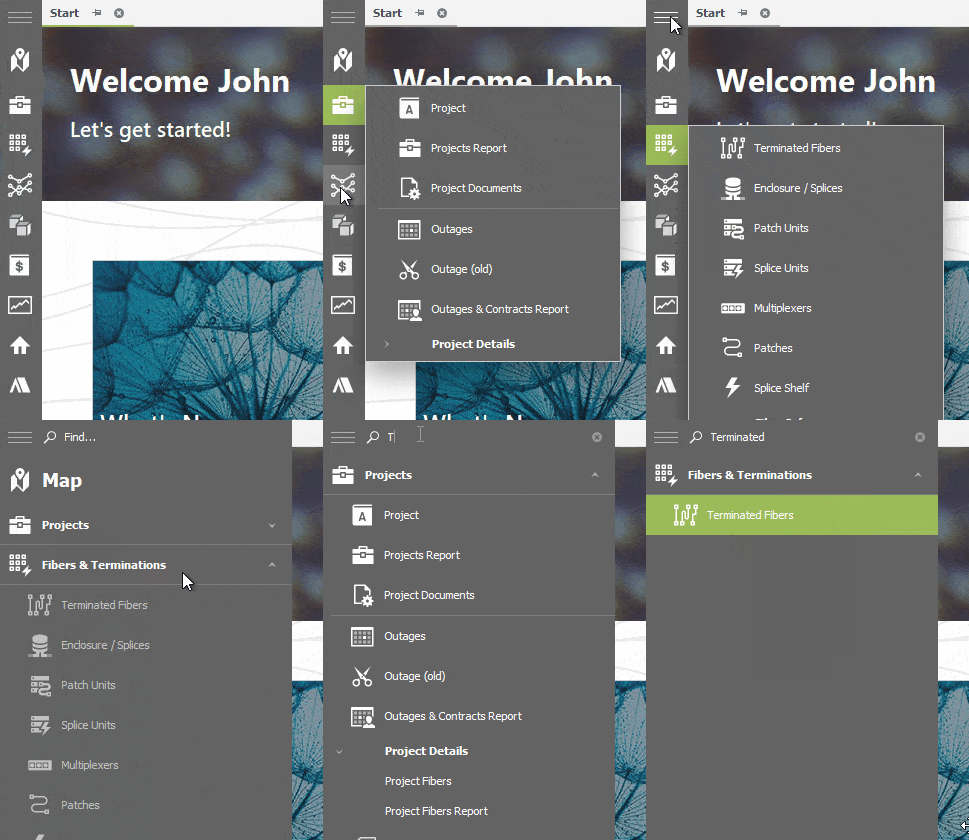
All primary screens now sit neatly in the main menu on the left, organised by network logic and priority. This helps you find the right screen faster.

2. The application menu

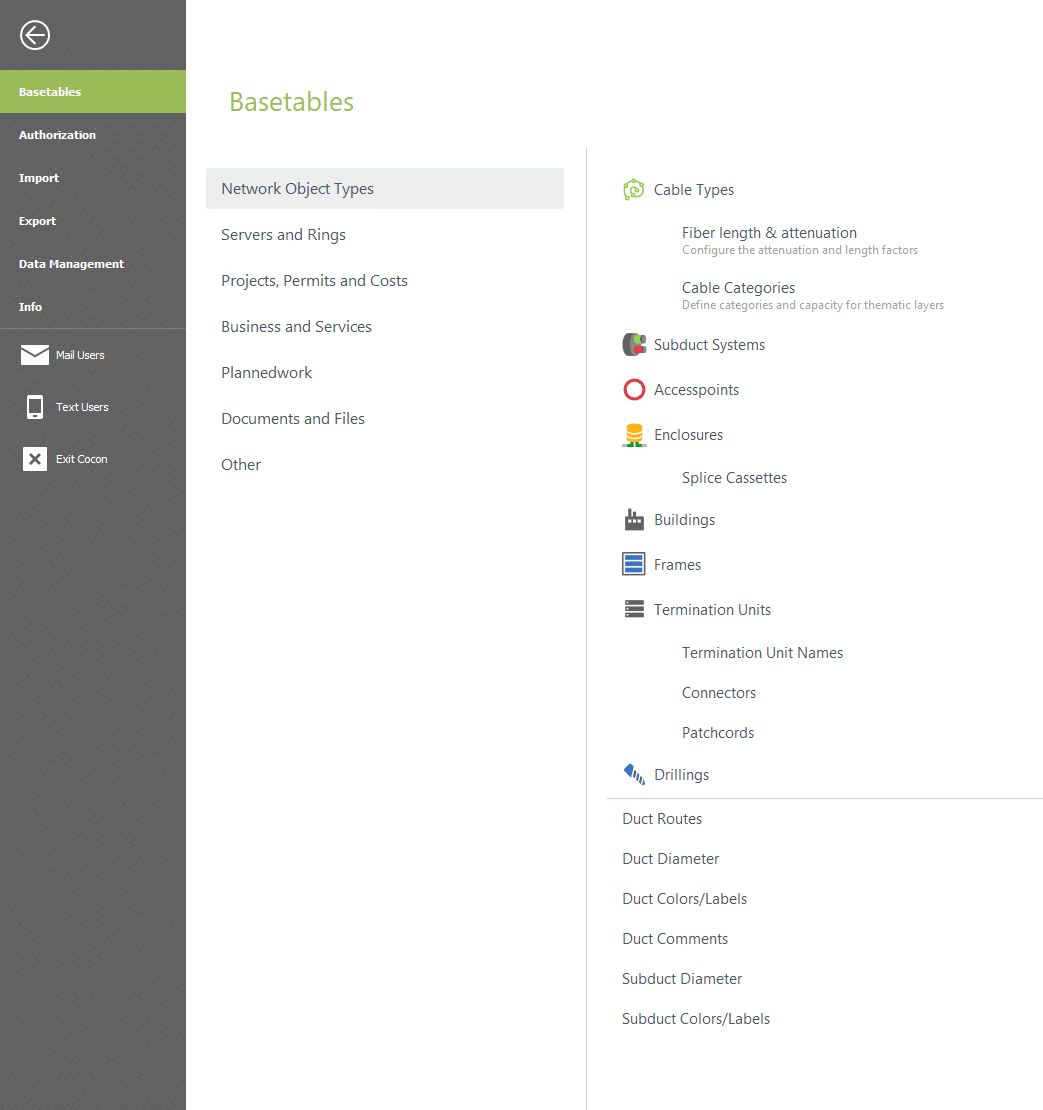
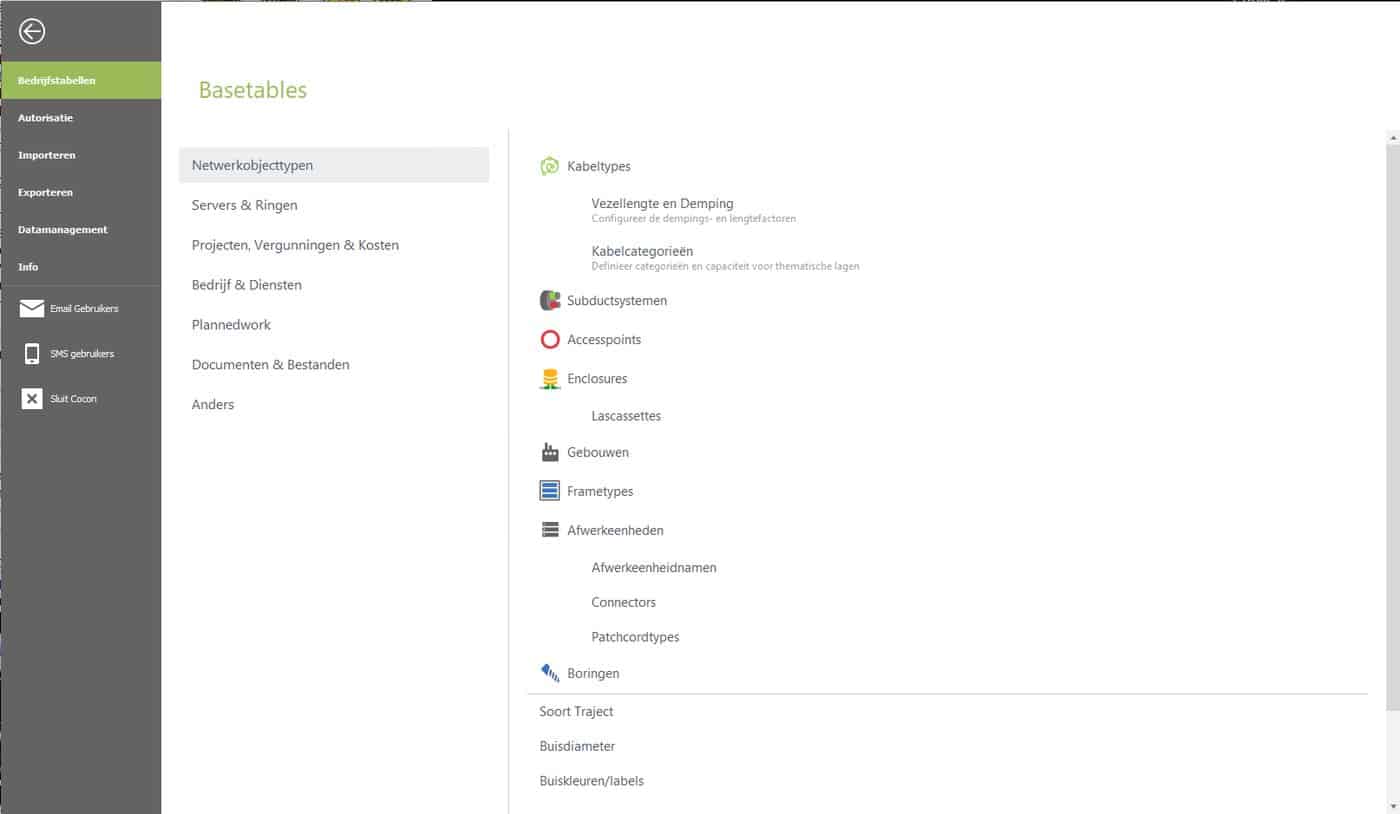
Everything related to the general environment and application settings is grouped under the application menu, top left: base tables, user and group authorisation, and the import and export of bulk files.

AND MORE

Work smarter with buttons and tabs

3. The ribbon: context-driven buttons. The ribbon at the top always shows the relevant buttons for the screen you’re working in, always in the same place and with the same layout. No more searching.

4. Tabs: multiple screens, your layout. Screens now open as tabs, so you can keep several screens open at once while staying in control. Drag tabs side by side or stacked, or pull a tab out of Cocon for a separate window on a second monitor.

BEFORE & AFTER

See the difference for yourself

The familiar view on the left, the new interface on the right, side by side.

The main screen

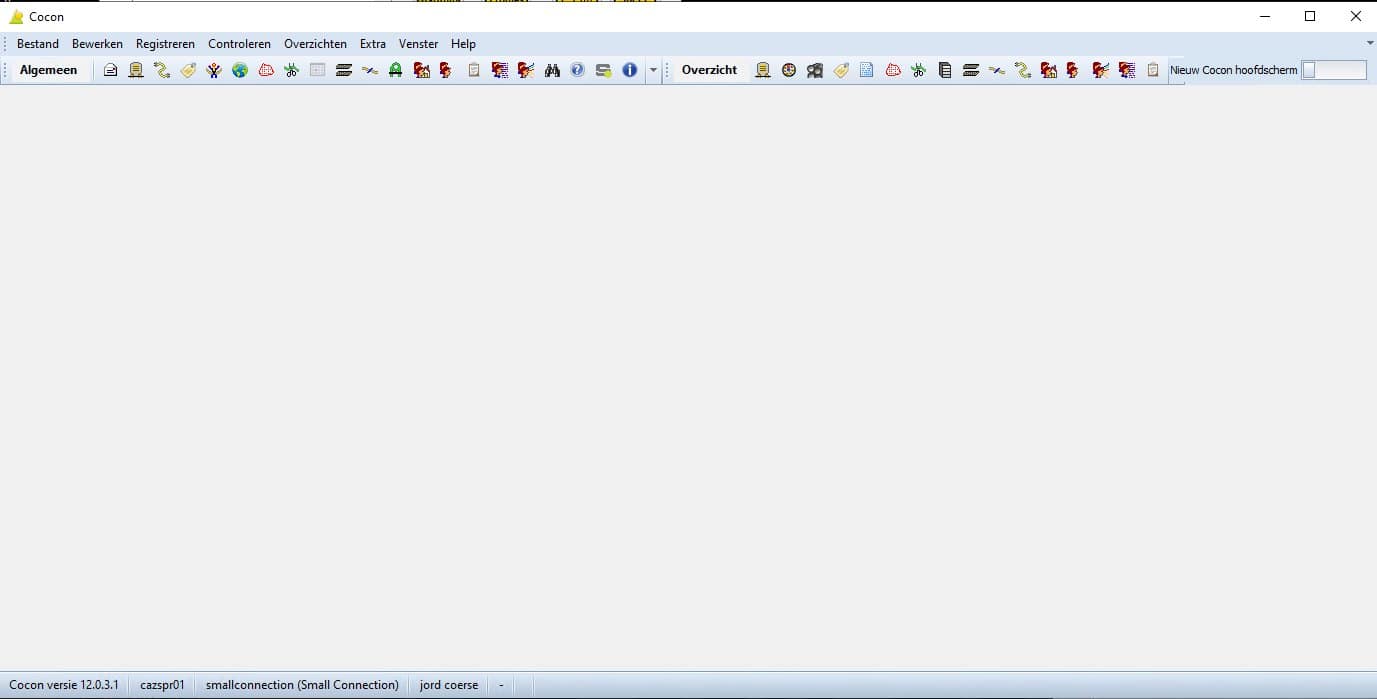
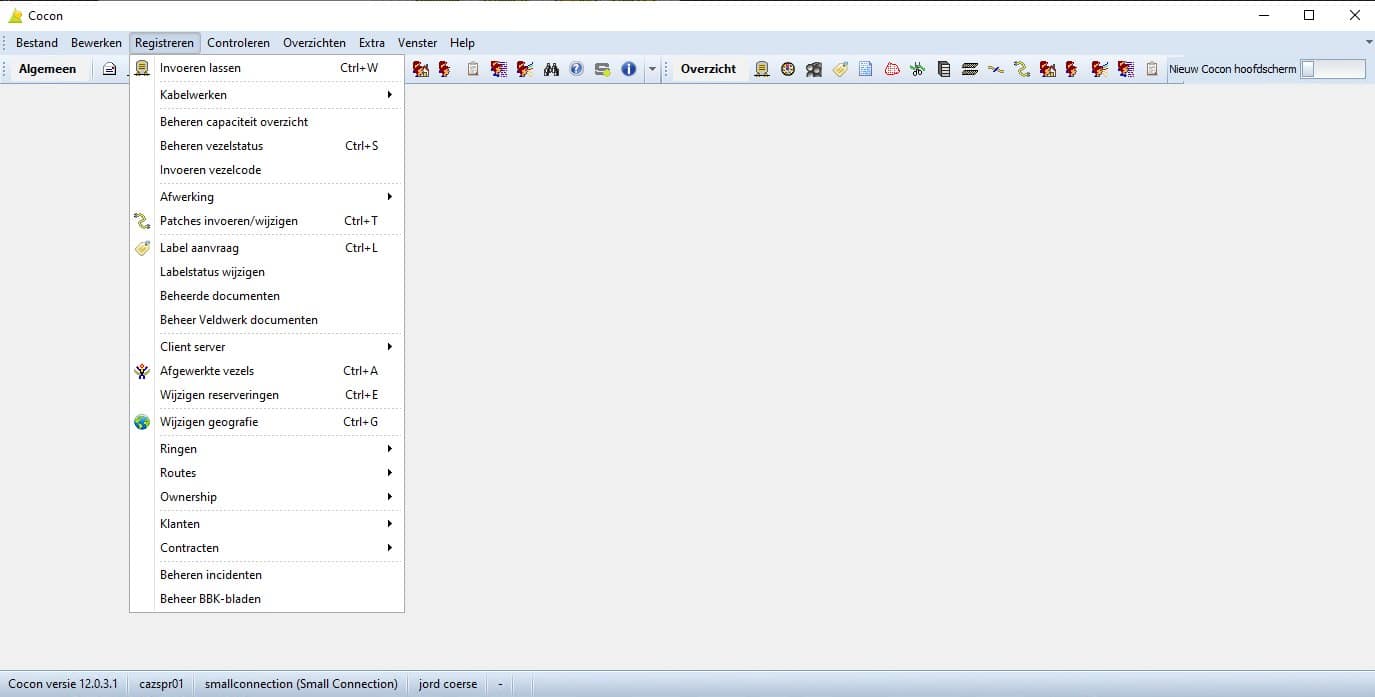
Before: an empty grey workspace with a thin menu bar and a busy toolbar.
After: an inviting start page with shortcuts, release notes and a calm layout.

Navigating the features

Before: one long drop-down list where the right option was sometimes hard to find.
After: grouped by theme, with icons and a short description for each function.
A GENTLE TRANSITION

Get comfortable at your own pace

You can start using the redesigned main screen right now and get used to it at your own pace.

GET STARTED

Try the new main screen

Switch on the ‘New Cocon main screen’ toggle at the top right, restart Cocon and explore the new interface. During the transition period you can easily switch back to get used to it at your own pace.

Questions? Service desk servicedesk@speerit.nl  |  0900 77 33 748  | Speer IT B.V.